
Question:
How to configure DMZ in Titan MFT and access the login page via HTTPS?
Reasoning:
Proper DMZ configuration with correct IP mapping and enabled HTTPS service allows external requests to be routed securely to the internal server.
Answer:
By enabling DMZ services, configuring the correct private and public IP addresses, and ensuring HTTPS is enabled, you can access the Titan MFT login page via the public IP.
Steps
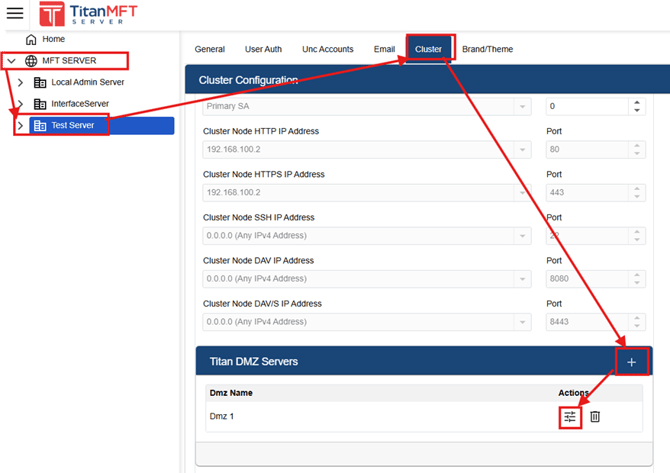
1. Open Cluster Configuration
- Log in to Titan MFT Server Admin UI
- Navigate to:
Domain → Server → Cluster tab - Click Add Titan DMZ and Click Action
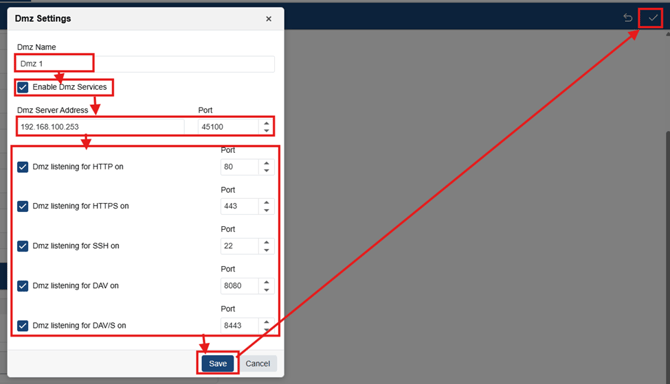
- Set DMZ Name
- Check “Enable DMZ Services”
- Set the following:
- DMZ Server Private IP Address: 192.168.100.253
- Configure ports as needed:
- DMZ: 45100
- HTTP: 80
- HTTPS: 443
- SSH: 22
- DAV: 8080
- DAVS: 8443
- Click Save
- Click Apply
3, Verify DMZ Server Settings
- Go to Titan DMZ Server
- Navigate to: DMZ Settings
- Set IP Addresses and port:
- Private IP Address: 192.168.100.253
- Public IP Address: 192.168.62.1
- DMZ port: 45100

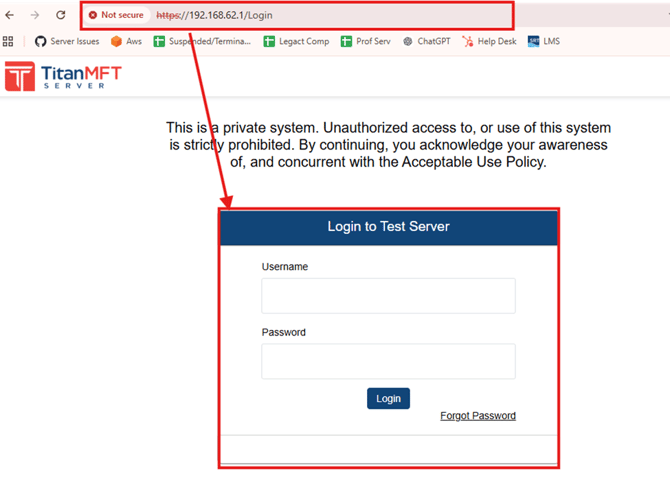
- Open a browser and go to:
https://192.168.62.1/login
- You should see the Titan MFT login page
- Log in using your test user.
Notes
- Make sure the firewall permits all ports required by the configuration.
- Direct access will only work if routing/NAT between public and private IP is correctly configured