
You have the option to enable FTP in Titan. Just keep in mind that FTP is not secure and transmits information in clear text. We recommend using Secure FTP/S
Steps
- Login to the admin portal
- Navigate to the server instance in question.
- Go to the Services section and click on the FTP tab.
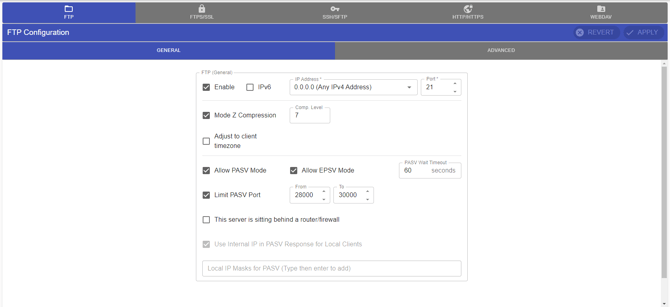
- Click on the “Enable” checkbox under FTP(General).
- Configure the IP address and port as needed.
- Enable “Allow PASV Mode” option.
- Enable “Limit PASV Port” and select an acceptable port range. By default, it is set to 28000-30000.
- Once the PASV port range is configured, you must also allow these ports on your firewall. If the PASV port range is blocked, users will not be able to transmit data.
- Finally, if the server is behind a firewall, you can enable that setting as well and provide the firewall information.
- Click on apply.