
Steps
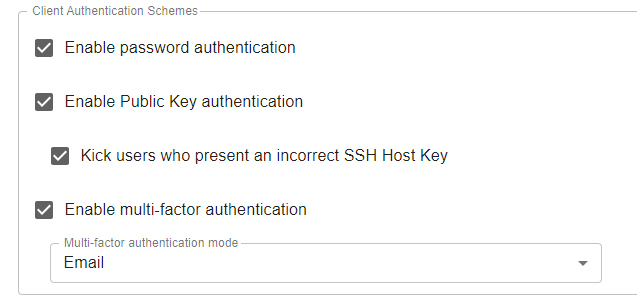
- Login to the admin page and navigate to services > ssh > enable multi-factor authentication. You can choose email (make sure email at server level is properly configured) or SMS. For this example, we will use email.
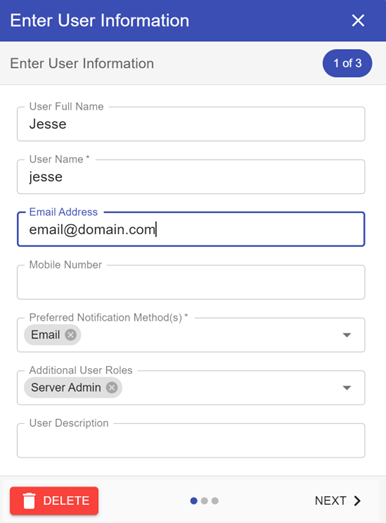
Ensure the user account has an email address in the user profile:
Open any client i.e winSCP/filezilla to login with a user using SFTP protocol
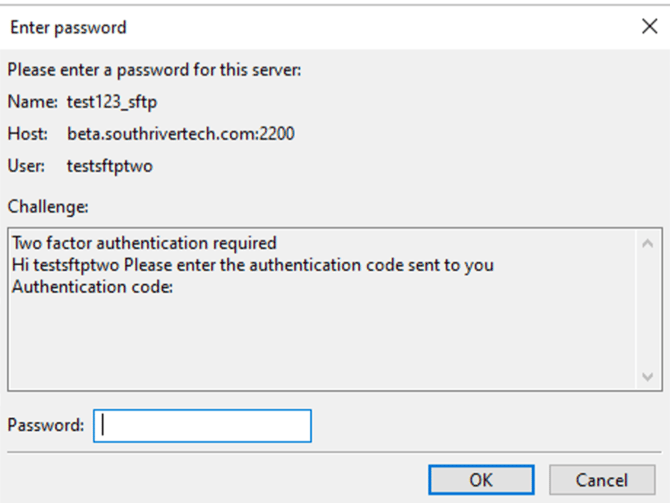
- Enter connection details (user interactive as logon type). Click connect and enter password
- Winscp/filezila will ask for multi-factor code, which user will receive in their email address.
Enter the multi-factor code and submit and the User will be login successfully.