
How To: Create and Use Group Home Directory in Titan
To create a shared group home directory in Titan, you must first create or identify the physical folder that will act as the group’s home. Then, you set that folder as the home directory in the group’s configuration within Titan, ensuring the correct access permissions are granted to the group members. Without setting the group home path and adjusting permissions, users might default to their individual home directories or encounter access denied errors.
Steps for Groups
- navigate to Domain
- Go to Server
- Then Group
- Select Group
- Click Action
- Select Edit Group Files & Directories
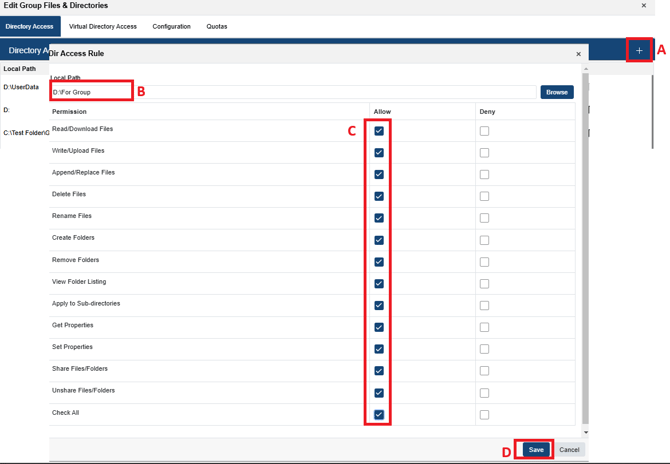
- In Edit Group Files & Directories
- Click + to add directory
- Browse or Add the path of the directory
- Set Permission
- Click Save
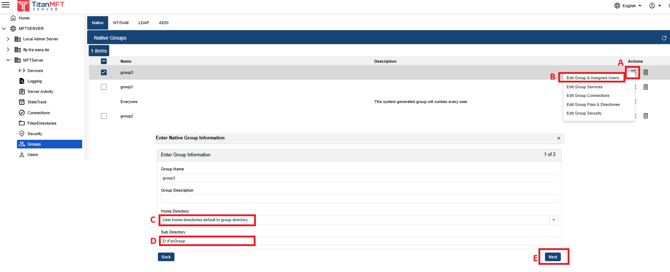
- Once you got back to group list Select same group and Click Action
- Select Edit Group & Assigned Users
- Set Home Directory to “Use home directories default to group directory”
- Set the path of Directory
- Click Next, Add Users and click Finish
Steps For Users
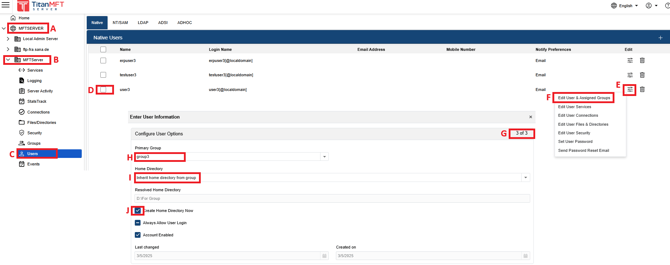
- navigate to Domain
- Go to Server
- Then Users
- Select Users
- Click Action
- Select Edit Users & Assigned Groups
- In page 3/3
- Set Primary Group
- Set Home directory to “Inherit directory from group”
- Check Create Home Directory Now and Click Finish
Login User and verify if the changes have taken effect.