Skip to content
  • There are no suggestions because the search field is empty.

How To: Create SSH Keys and apply to a User

Question

How can I create SSH keys for users and use it as authentication aside from password?

Reasoning

SSH Key Authentication is more secure than Password authentication.

Answer

Follow the below steps-by-steps procedure.

Steps
  1. Login to your Titan Server.
  2. Navigate to your Server > Services > SSH/SFTP
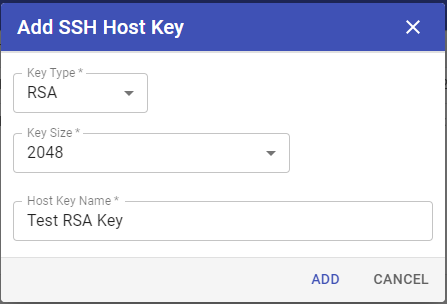
  3. Click Manage Host Keys
  4. Click b > Choose what type of Keys you would like to use (RSA, DSA, ECDSA) 
  5. Choose what Key Size you would like, for RSA minimum of 2048.
  6. Enter a Host Key Name of your choice
  7. Click Add
      You should see something like this:

      A screenshot of a computerDescription automatically generated

      Make sure you can see the Key you just created. Once validated that it has been created, click Close.
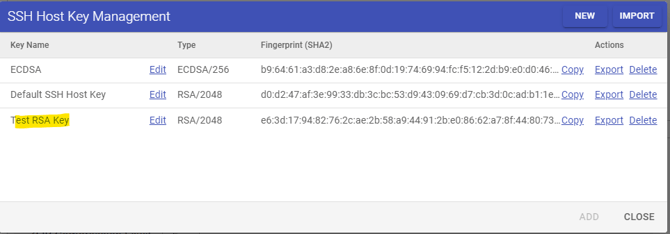
      A screenshot of a computerDescription automatically generated

      Check the checkbox for Enable Public Key authentication and you may also check Kick users who present an incorrect SSH Host Key , and to apply the changes click Apply at the upper right of the screen, then click OK
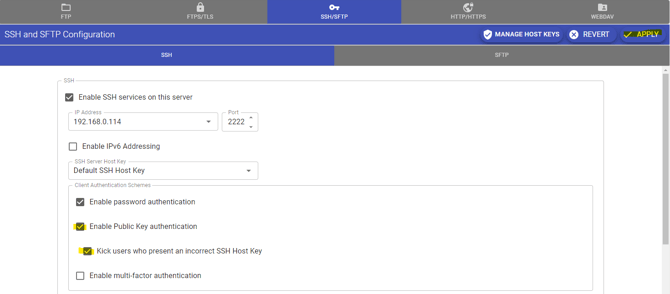
      A screenshot of a computerDescription automatically generated


      To apply it on the users. Go to Server > Users> Choose the user you wanted to change the settings and click the pencil icon, then choose Edit User Services
      A screenshot of a computerDescription automatically generated


      In the User Services Window, choose SSH/SFTP
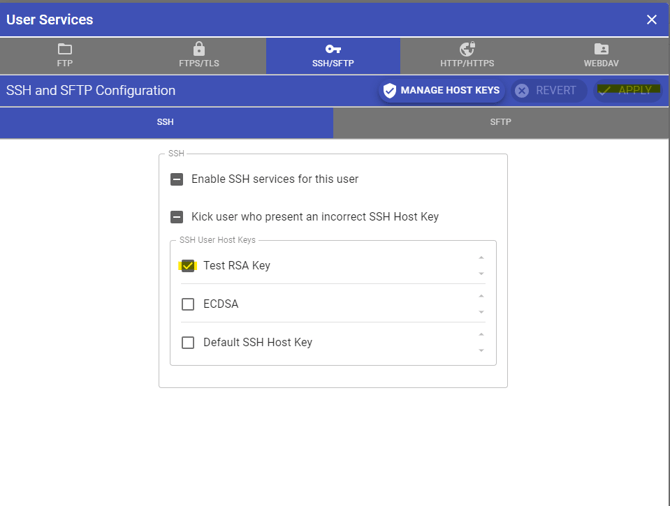
      Then check the checkbox for the SSH User Host Keys that the user will use to login, then click Apply
      A screenshot of a computerDescription automatically generated


      Need More Help? We’ve Got You Covered.

      If you didn’t find what you were looking for, our support team is here to help. Customers with active maintenance and support can join the help desk and Submit a ticket and one of our experts will follow up shortly.