
How To: Enable and Use PGP Encryption Events. Note you can use PGP real-time encryption and not use events at all. In real-time mode files are automatically encrypted and decrypted when uploading and downloading. Events may be useful where you want to only encrypt specific files at specific times.
Steps to set the PGP Key for using your Events
- Login to your Titan SFTP Server.
- Navigate to your Domain > Servers> Security> go to PGP tab.
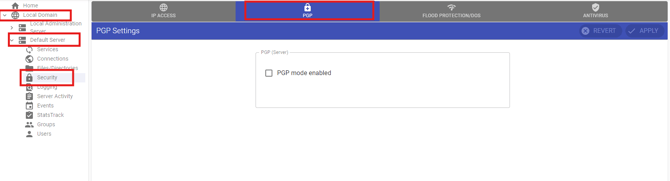
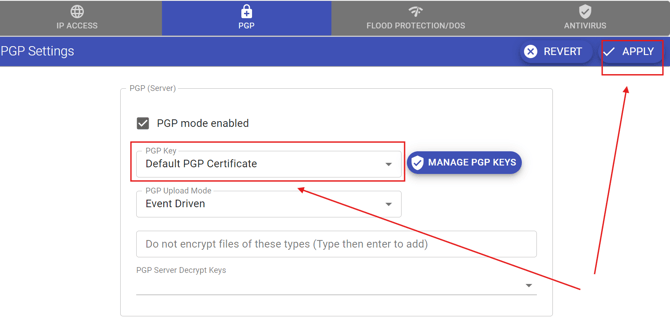
- Check the box for “PGP mode enabled”, below are the options for PGP Settings.
- Select your Key and click APPLY
- Uncheck the box for “PGP mode enabled” and click APPLY.
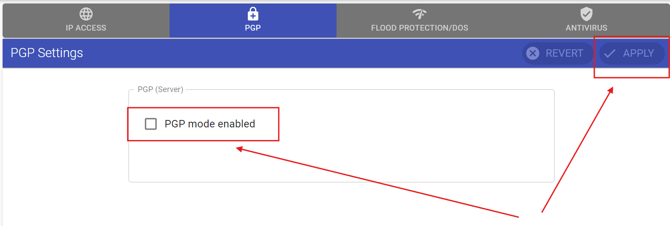
***NOTE: You need to disable the PGP mode again after specifying the Key to avoid double encryption.
Steps to specify Key
- Navigate to your Domain > Servers > Events > click the “+” button.
- Add an event for Upload/Write successful
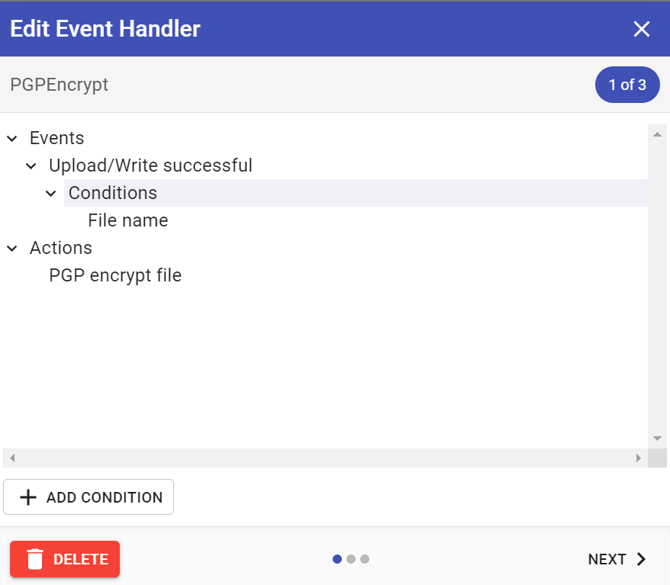
- In the Filename, specify the path of the File name you want to be encrypted/decrypted
- I.e “C:\folder\*.txt “ to encrypt/decrypt all the text files under C:\folder.
- Add an action for PGP Encrypt or PGP Decrypt, leave it as default, then click OKAY
- Click NEXT > Enter an Event Name and Description > click NEXT >click CREATE to complete.