How To - Login using Curl for Windows using Host Keys Authentication with Titan SFTP
Steps
Download and install Curl for Windows https://curl.se/windows/
Note: The Microsoft curl build omits several good features, that is why you need to download curl from their website.
- no Public Suffix List (PSL) support, making it impossible to prevent "super cookies"
- no support for HTTP/2 or HTTP/3
- no support for GOPHER(S), LDAP(S), RTMP, RTSP, SCP, SFTP, WS(S))
- no brotli or zstd compression
I. Download and extract Curl for Windows (in this example: I extracted this under the folder below)
C:\curl\
II. Generating Keypair in Windows
C:\Users\nelpa\.ssh>ssh-keygen -t rsa -b 2048
Generating public/private rsa key pair.
Enter file in which to save the key (C:\Users\nelpa/.ssh/id_rsa):
Enter passphrase (empty for no passphrase):
Enter same passphrase again:
Your identification has been saved in C:\Users\nelpa/.ssh/id_rsa
Your public key has been saved in C:\Users\nelpa/.ssh/id_rsa.pub
The key fingerprint is:
SHA256:/hYNT5KbfOFTZhivcImMx+RdjSoPtYu36kIwOhmnHxo nelpa@DESKTOP-3P8H2A0
The key's randomart image is:
+---[RSA 2048]----+
| o |
| . o o .|
| * = O |
| . + . & X = |
| * oSo ^ B |
| E ... * @ |
| = o. + o |
| . . ... . |
| ++. |
+----[SHA256]-----+
C:\Users\nelpa\.ssh>dir
Volume in drive C has no label.
Volume Serial Number is 0455-A7B4
Directory of C:\Users\nelpa\.ssh
04/10/2025 09:00 AM <DIR> .
04/10/2025 09:00 AM <DIR> ..
04/10/2025 09:00 AM 1,876 id_rsa
04/10/2025 09:00 AM 404 id_rsa.pub
04/10/2025 04:12 AM 398 known_hosts
04/10/2025 03:59 AM 792 known_hosts - Copy
4 File(s) 3,470 bytes
2 Dir(s) 54,705,213,440 bytes free
III. Upload the generated Public Keys in Titan
Go to Users -> (Select the user) -> User Services -> SSH/SFTP -> Manage Host Keys -> Import (See below) – Then Add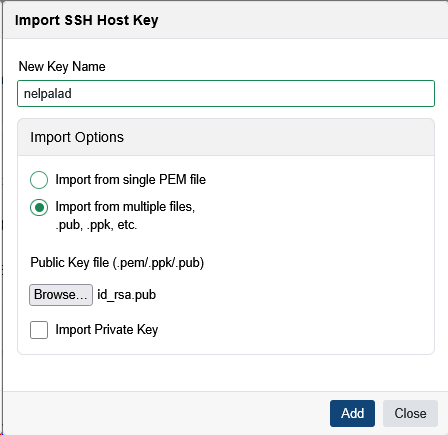
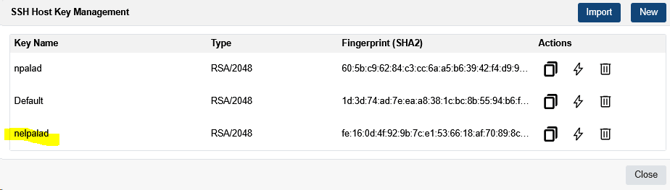
IV. Make sure that the public key has been added in SSH Host Key Management. See sample below:
V. Assign the Host key to the user (see sample below). Then save.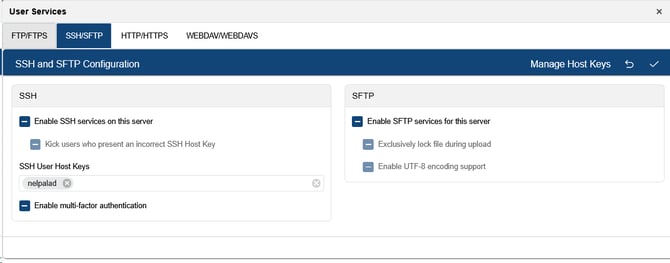
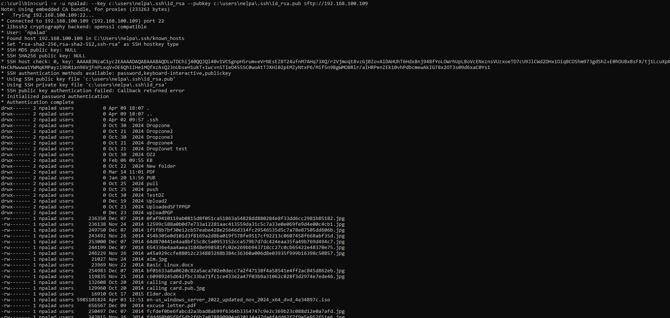
VI. Once added, you can now login from Windows using Curl using the command below:
c:\curl\bin>curl -v -u npalad: --key c:\users\nelpa\.ssh\id_rsa --pubkey c:\users\nelpa\.ssh\id_rsa.pub sftp://192.168.100.109