
How To: Set permissions to inherit from Group
Steps
- Login to your Titan SFTP Server.
- Navigate to your Server > Groups > ‘+’ sign to add a new group
- Enter Native Group Information
- Group Name: Enter a group name
- Home Directory: User home directories default to group directories
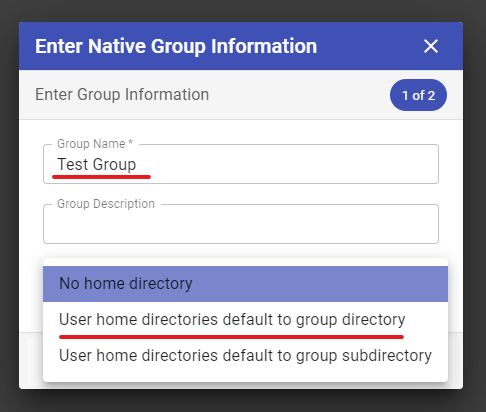
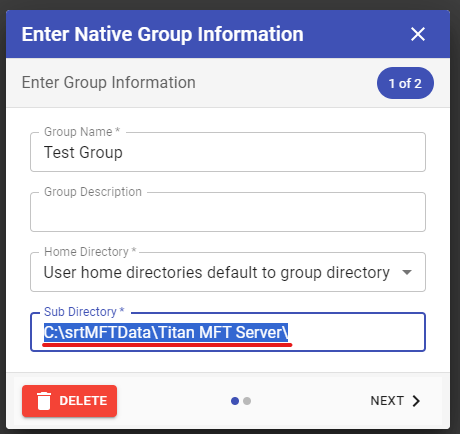
***for Sub Directory, specify the path to use for this group files and directory***
In the Assign Members page, click ‘Finish’.
Edit User
-
Navigate to your Server > Users > ‘+’ to add a new user and enter the user information Click 'Next'
-
In the ‘Assign to Groups’ page, make sure that your group is at the Current Groups, aside from the default group (Everyone) . Click 'Next'
-
In the ‘Configure User Options’ page, fill out the following informatio
-
Primary Group – This should be your group, and not Everyone
-
Home Directory – Inherit home directory from group.
-
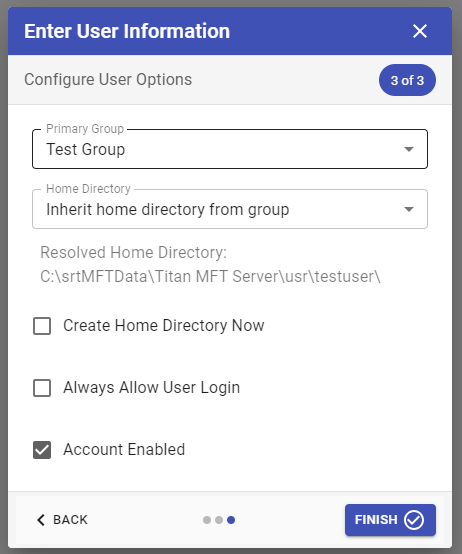
Click ‘Finish’.
To Verify and confirm that you are inheriting the permission from the group:
- Login to Titan
- Navigate Users > Click the pencil icon under edit > choose ‘Edit User Files & Directories’
- Under Directory Access, verify if the Path defined there is under the Group Level. See below image:
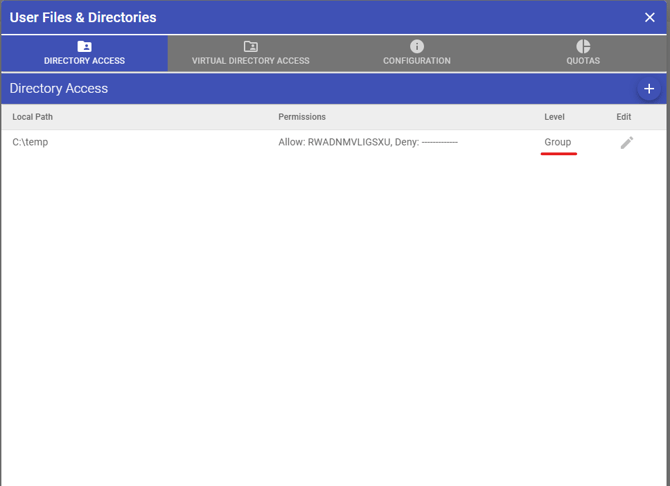
**** Image above shows that the user is inheriting the permissions to the group and once you changed it on the group level, it will automatically change the permissions to the user level ******