How To: Set up High Availability and Clustering in Titan
Titan supports HA and clustering by allowing multiple nodes to share configuration, user accounts, and session state. This ensures service continuity and load balancing between nodes. The setup typically involves shared storage and database.
Steps
-
Set up Database. Titan supports SQL Server, PostgreSQL, MariaDB, MySQL
-
Ensure that you have the Titan High Availability and Scaling module regcode enabled which is required for clustering.
- A UNC path will be required to store user data
Setting up Primary Node Cluster
-
In Titan Administrator click on Add new Server
-
Select New Stand Alone or Primary Cluster Server
-
Click Next
-
Set up Database connection.
-
Select MS SQL Server database
-
Select Server Instance
-
Select Username and Password for Authentication Type
-
Set username and passwordSelect Newly created Database (Step 2 on Process A)
-
- Click Next
-
Fill all information and required setting Click Finish.
-
After Server has been created. Navigate to
-
Domain > Server >
-
UNC Accounts Tab.
-
Click Add
-
Insert UNC Path
-
Insert UNC user
-
Insert UNC password
-
Click Next
-
-
After UNC path is added, Navigate to
-
-
Domain > Server
-
Files/Directories
-
Directories Tab
-
Change all necessary directories, especially User data Directory
-
Click Apply
-
Note: Please use UNC path for User Data Directory, so both Primary and Secondary Cluster can access it.
-
If using Titan DMZ Navigate to
-
Domain > Server
-
Select Cluster Tab
-
Add Cluster node name and Click Add DMZ
-
Click Action on DMZ1
-
Check enable DMZ Service
-
Set DMZ IP Address
-
Enable necessary protocol and set port
-
Click Save
-
Click Apply
-
Set up Secondary Cluster
- In Titan Administrator Navigate to Domain > Server
-
Add new Server
-
Select New member server of existing server
-
-
Click Next Set up Database connection.
-
-
Select MS SQL Server database
-
Select Server Instance
-
Select Username and Password for Authentication Type
-
Set username and password
-
Select Newly created Database (Step 2 on Process A)
-
Set Server Name (This should be matched on primary server name)
-
Click Next
-
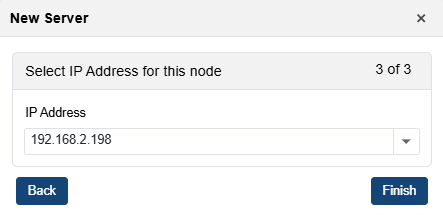
Set IP and click Finish