How To: Tectia SSH.com Public Key Authentication with Titan SFTP
Steps
Download and install Tectia SSH.com from https://www.ssh.com/
I. Generating Keypair in Linux for ssh.com (scpg3)
#ssh-keygen-g3 -t rsa -b 2048
Generating 2048-bit rsa key pair
8 .oOoo.oOo.oO
Key generated.
2048-bit rsa, root@titanmft, Fri Apr 04 2025 16:54:30
Passphrase :
Again :
Private key saved to /root/.ssh2/id_rsa_2048_c
Public key saved to /root/.ssh2/id_rsa_2048_c.pub
II. Convert generated keypair to OpenSSH format
ssh-keygen-g3 -p Naza1278 --key-format openssh2-aes --import-private-key id_rsa_2048_c id_rsa_2048_c2
ssh-keygen-g3 --key-format openssh2 --import-public-key id_rsa_2048_c.pub id_rsa_2048_c2.pub
III. Copy converted public keys to Windows to Upload it to Titan
The generated keypairs are located in user's home directory under .ssh2
IV. Upload public key in Titan
Goto Users (select user you want to use) -> Edit Users Services -> SSH/SFTP -> Click Manage HosT Keys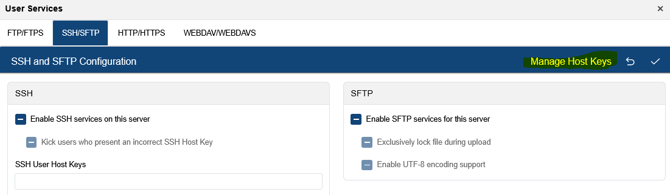
V. Click Import -> Put Name in New Key Name -> Select Import from Multiple files, .pub -> Click Browse and look for the Public Key and click Add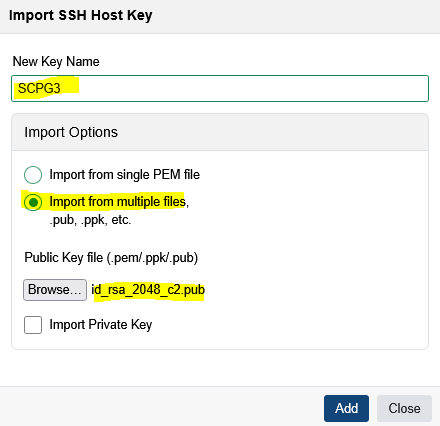
VI. Public Key is now added - > Click Close
VII. Assign Public Key to user -> Click Save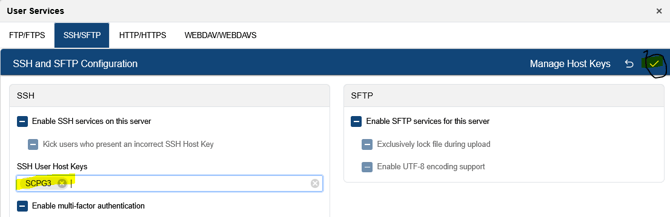
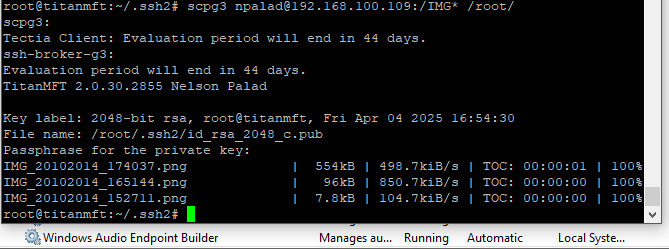
VIII. Now, go to Linux and test the transfer
# scpg3 -v random_seed npalad@192.168.100.109:/