How To: Generate and Install Web TLS Certificate in Titan SFTP
Installing TLS and using HTTPS is essential for protecting data, enhancing trust, complying with regulations, improving search engine ranking, and ensuring a better overall user experience. It's a necessary step for any modern website. You can either create a certificate signing request (CSR) in Titan and then import that into your certificate provider to generate a valid TLS certificate or just import an existing certificate that was already created from your provider. There is also an option to create a self signed certificate however self signed certificates will generate warnings when the page is displayed in a browser.
You can create self signed certificates in Titan SFTP however browsers and modern FTP/S clients may display warnings when using a self signed certificate. It is best practice to get a signed certificate from an authorized certificate provider and import it into Titan. Typically this process involves generating a CSR (certificate signing request) which can either be done in Titan SFTP or typically directly at your certificate provider which will be an easier process. If you do use your certificate provider to create your certificate then simply import that certificate (public/private key pair) directly into Titan and bypass the steps below which involve creating a CSR.
TLS Certificates are used for both Web interface and FTP/S connections.
Steps to create a TLS certificate
Go to your Server Instance → Services → HTTP/HTTPS → MANAGE CERTIFICATE → Click NEW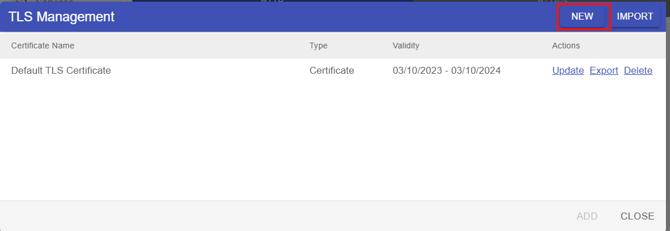
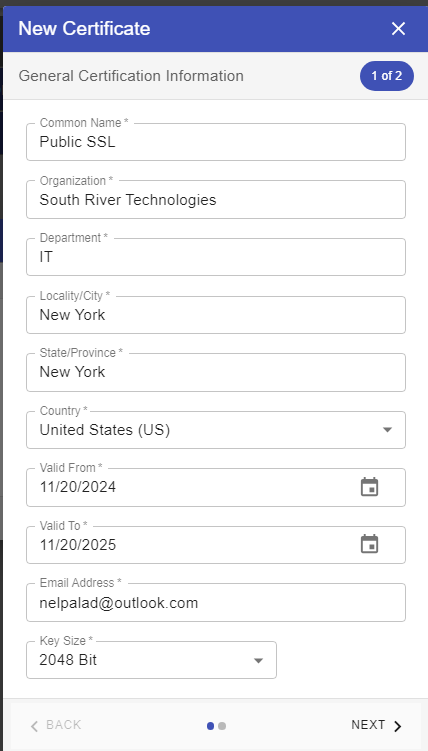
Follow the sample image on how to create CSR
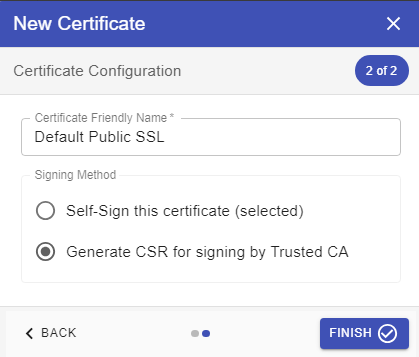
Select “Generate CSR for signing by Trusted CA
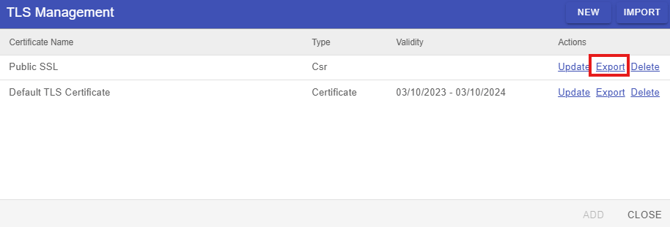
Select “Export”
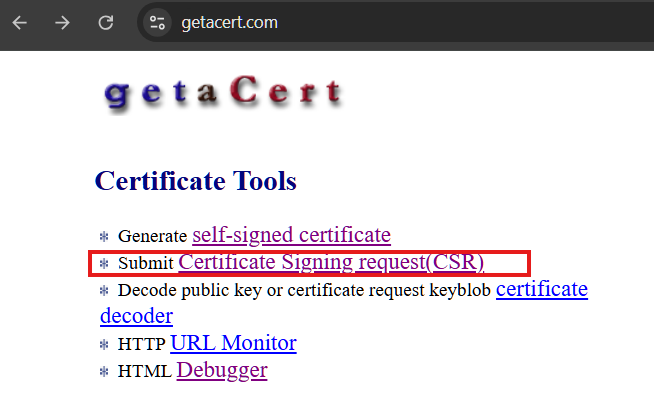
Getting Certificate from GetACert (just an example, use your own certificate provider)
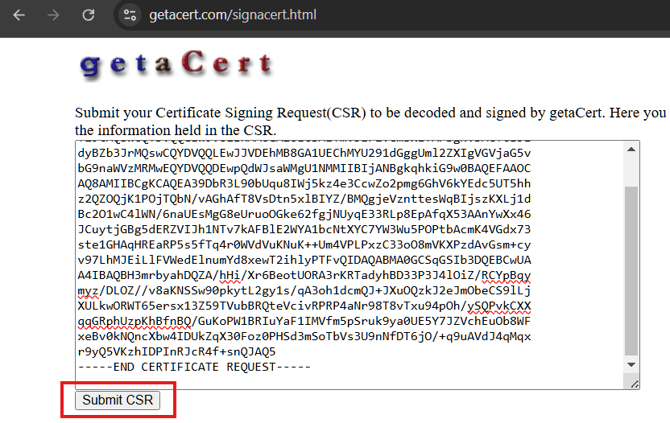
Paste the CSR
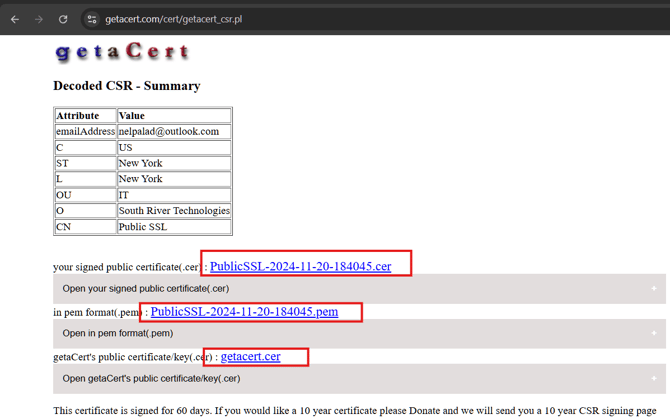
Download the Public key (Cer) and Private Key (pem) and import the Public key 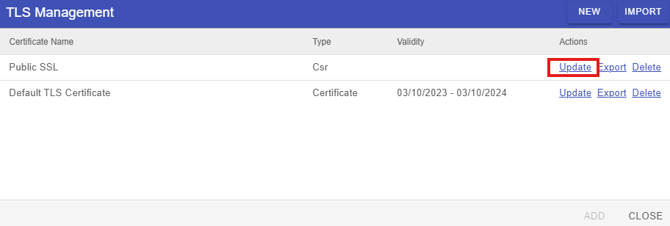
Download the Public key (Cer) and Private Key (pem) and import the Public key 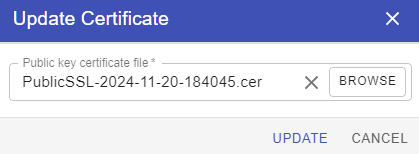
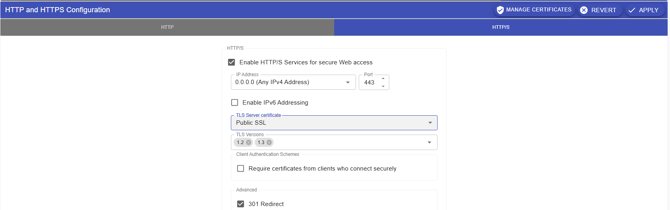
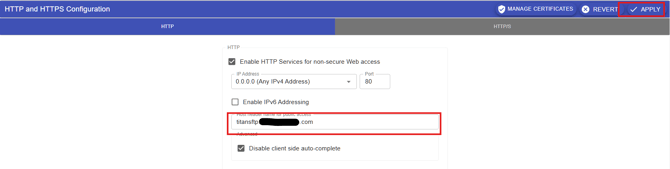
Make sure that you put the FQDN of your website under “Host header name for public access” then click Apply.