
How To: SFTP Public Key Authentication in Titan SFTP
To add more security, instead of using username and password to authenticate users to Titan SFTP, we can use private/public key authentication. This enhances security and user experience by providing stronger protection than traditional passwords, making it more resistant to brute force attacks. This method eliminates password-related risks like theft and phishing, while simplifying the login process. If a key is compromised, it can be easily revoked and replaced, improving security management. Additionally, it enhances monitoring and auditing capabilities, supports secure automation, and can integrate with multi-factor authentication. Overall, this transition significantly strengthens security and streamlines user access.
Note: you can also create host keys using something like puttygen in which case you can import only the public key into Titan SFTP for the user to authenticate and use the public/private keypair from puttygen in your SFTP client.
Steps
- Login to your TitanAdmin server web UI.
-
Go to your sever > Services > SSH/SFTP >Manage Host Ley
-
SSH Host Key will pop up. Then click New.
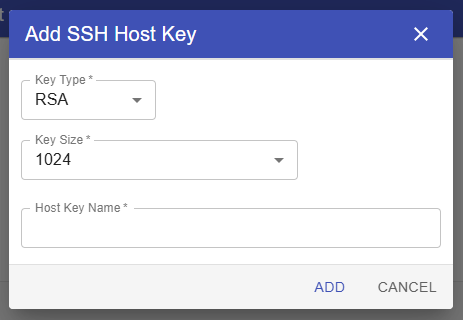
- Add SSH Host key dialog will pop up. Select Key Type and Key Size then set desire name for your host key.
-
Now the newly created host key is now listed in SSH Host Key Management. After confirming that the new SSH Key was successfully added.
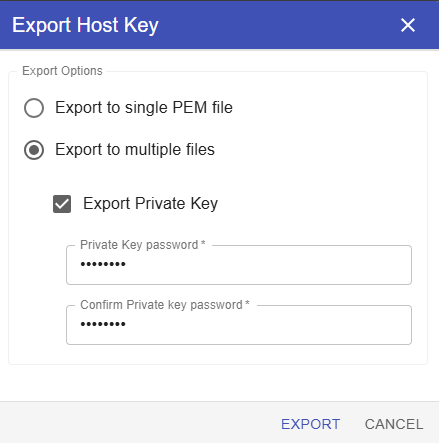
- For the next step. Export SSH as multiple files and check Export Private Key then set desire password. Then click “EXPORT”. We’re going to use this for later procedure.
Configure User for Host key Authentication
- Go to User
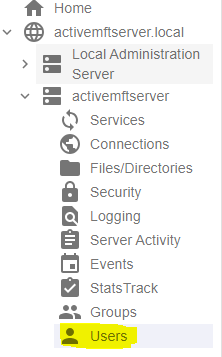
- Select user and click modify. Then select Edit User Services.
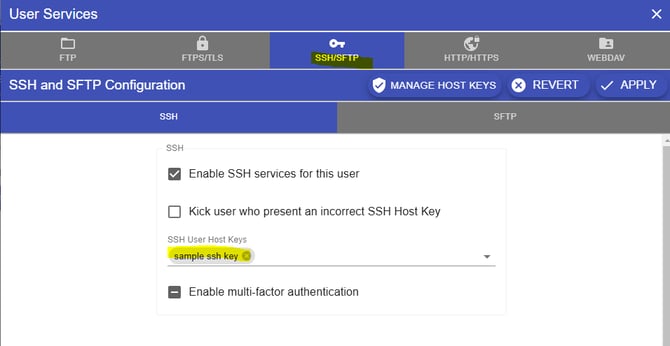
- Go to SSH/SFTP tab. Check “Enable SSH Services for this user” and In drop down select your newly created ssh key (Procedure 4 in Configuring Server). Then click apply.
Configuring Client.
- Unzip the exported SSH Key host (from previous step).
- Open your SFTP application in our client (for this example we’re going to use filezilla.)
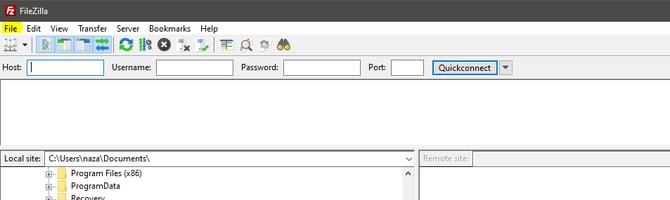
- Click file then select Site Manager.
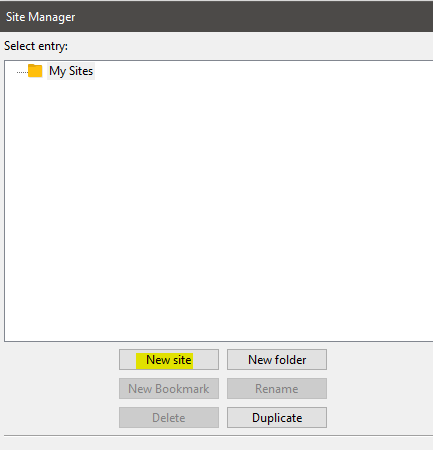
- Add site by clicking “New Site”, then set desire name for this connection.
- After the site name was set. Set protocol to SFTP-SSH File Transfer Protocol. Set Host Address and port.
Select Key File in “logon Type” dropdown. Fill out “User” using client username. Select .ppk file in unzip certificate folder.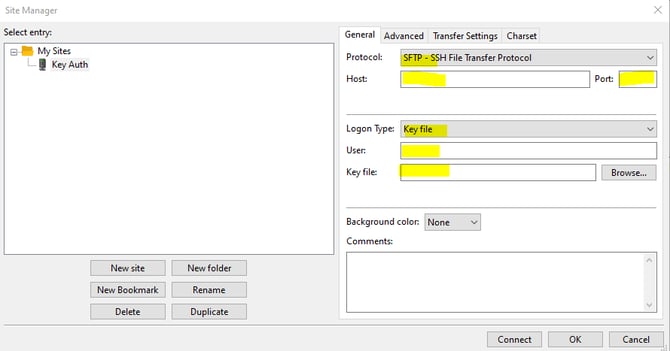
- Then try to connect.